Tsumugu

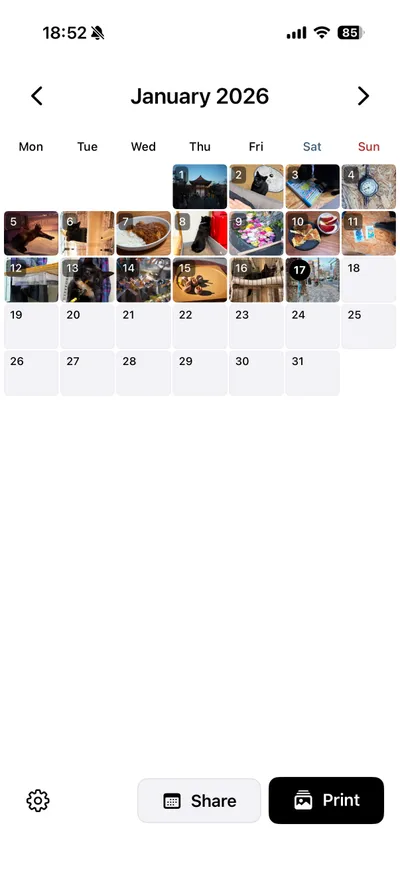
Select one photo per day.
Create your own photo diary.

Tsumugu app screenshot

Features

A simple and easy-to-use photo diary app
Just pick one photo daily

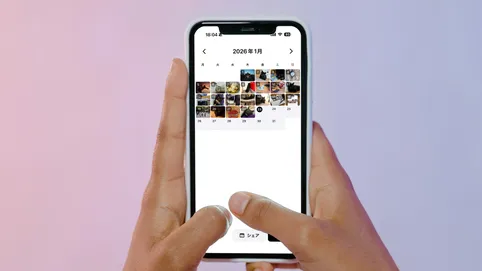
Just pick one photo daily

Tap a date on the calendar and select a photo from your library for that day.
Home Screen Widgets

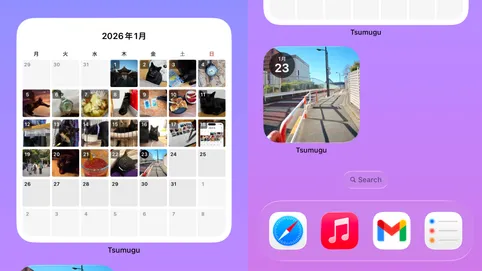
Home Screen Widgets

Supports small, medium, and large widgets. Enjoy viewing today's photo or weekly/monthly calendar right from your home screen.
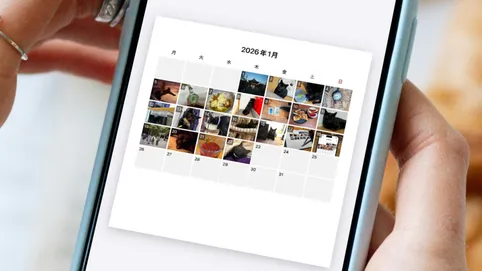
Share on social media

Share on social media

You can export it as a calendar image and share your memories on Instagram, X, etc.
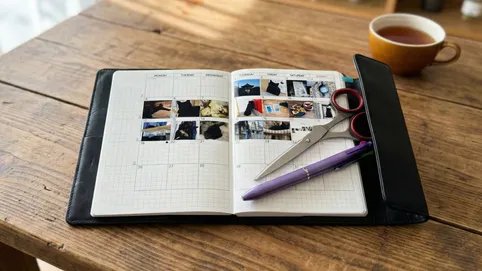
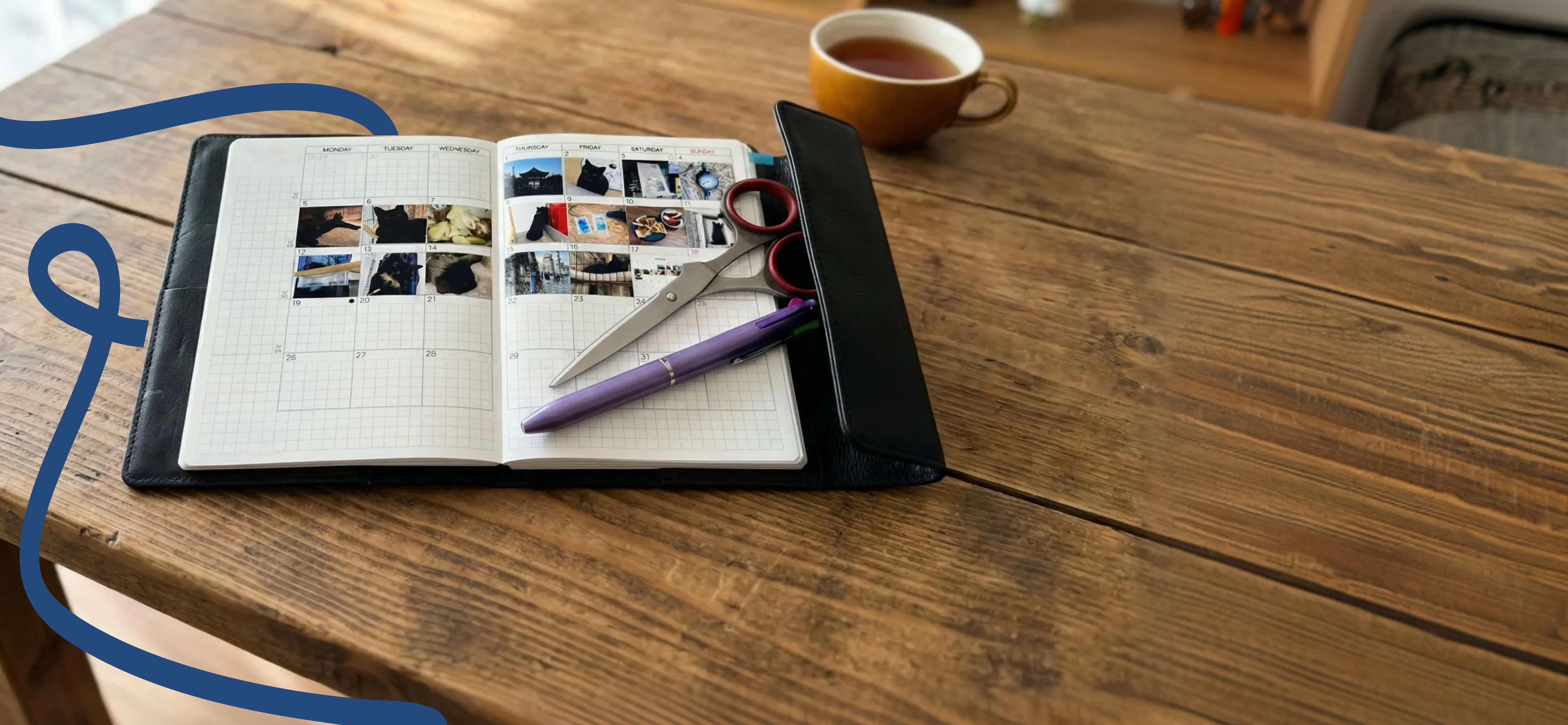
Planner-sized printing

Planner-sized printing

Printed in a mini size perfect for planners. The default size is 22.5 x 18.5mm. It can be customized within the range of 10 to 50mm.

How to Use

Select and enjoy

First, select your photos
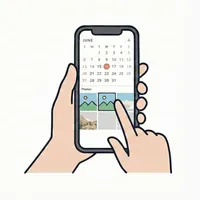
Select a photo
01

Select a photo

Tap a date on the calendar and select a photo from your library.
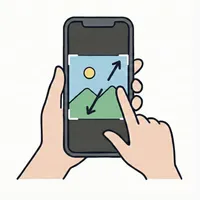
Adjust position
02

Adjust position

Adjust position by dragging, and zoom by pinching. You can crop any part you like.

Enjoy!
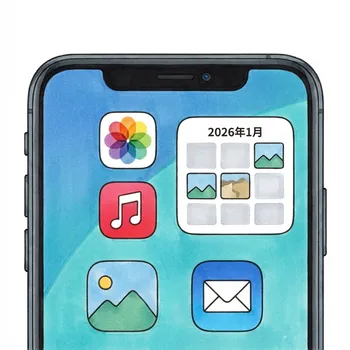
View on widgets

View on widgets

Add to your home screen and view today's photo or weekly/monthly calendar anytime.
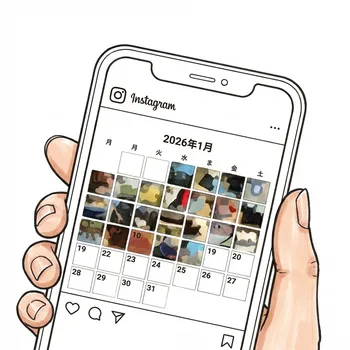
Share on social media

Share on social media

Export as a calendar image and share your memories on Instagram, X, etc.
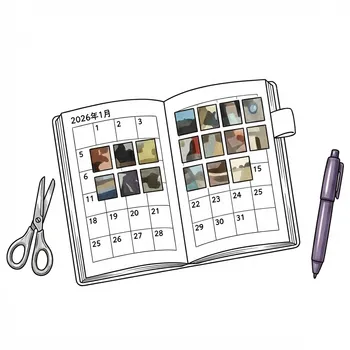
Print for your planner

Print for your planner

Print in mini size, cut along the lines, and paste into your favorite planner.

From the Developer

After trying planners, journals, and digital notes, I realized the easiest and most enjoyable way to look back on my days was simply selecting one photo per day.

Writing takes effort, but selecting a photo is easy enough to keep up. And it's the ordinary, everyday photos that feel the most nostalgic and interesting when you look back on them later.

Everyone enjoys it differently. I hope you find your own pace and have fun with it.

FAQ

Can I change the print size?
Yes, you can freely set width and height from 10 to 50mm. Default is 22.5×18.5mm.
The printed size doesn't match?
Depending on printer settings, it may print in a different size. Check the print result and fine-tune the size in settings.
I don't have a printer
From the print preview screen, you can tap "Share" to save the PDF to the "Files" app. Please print the saved PDF at a convenience store's multi-copier or similar. Depending on the printer settings, the print size may vary slightly, so we recommend printing one page first to check the size. It takes a little effort, but please enjoy the analog experience.
What paper sizes are supported?
You can choose from A4, postcard, and L size. You can also set a custom paper size to print on your preferred dimensions.
Can I print multiple months at once?
Yes, by specifying start and end dates when printing, you can print multiple months together.
Where is data stored?
Data is stored in the app area on your device. When you enable iCloud sync, your data can be synced across all devices signed into the same iCloud account.
How does iCloud sync work?
Enable iCloud sync in the Settings screen to automatically sync your photos and settings. When enabling for the first time, you can choose a sync mode: "Auto Merge", "Prioritize iCloud", "Prioritize This Device", or "Ask Every Time". If data conflicts, you can choose which version to keep.
What iOS versions are supported?
iOS 17 and above. Works on both iPhone and iPad.
Can I remove ads?
Yes, by purchasing "Remove Ads" (¥500, one-time) in the app, all ads will be hidden.
Photos are not showing in the widget
Please open the app once first. If photos still don't appear, try long-pressing the widget and selecting "Edit Widget" to change the size, or remove the widget and add it again.
Download on the App Store